NOOK
UX Case Study · Mobile App

NOOK: a furniture app that gets shoppers from browsing to checkout in fewer steps.

A mobile shopping concept for a furniture retailer, with a small catalog, real product photos, and a checkout meant to take under a minute. This page explains the design choices and links to a clickable prototype.

Prepared forHome furniture retailer
PlatformiOS / Android · 390×844
StatusConcept · ready for user testing
DeliverableInteractive prototype + design system

The problem

01 / 10

Furniture costs a lot and is hard to judge on a phone, yet many furniture apps look like desktop catalogs squeezed onto a small screen. The grids are dense, the dimensions are unclear, you have to make an account before checkout, and you can't tell how a piece will look in your room.

  • Shoppers abandon carts when shipping and tax only show up at the last step.
  • Having to create an account is one of the most common reasons shoppers give for leaving checkout.
  • Huge, unsorted catalogs make choosing harder when people already worry about price, fit, and style.
  • Generic stock photos make a listing harder to trust when material and finish matter.

NOOK keeps the catalog small, uses honest photos, shows the full price at every step, and asks only for what the purchase needs.

User flow

02 / 10

Every step a first-time buyer takes, from opening the app to placing an order. There are no dead ends or forced detours.

1
Open App
Splash screen
2
Onboarding
3 slides, skippable
3
Sign In
or Continue as Guest
4
Browse / Search
curated grid or query
5
Product Detail
finish, config, qty
6
Add to Cart
toast + auto-navigate
7
Checkout
costs shown up front
8
Confirmation
order placed
8 steps, 2 optional. Onboarding and sign-in can both be skipped, so an impatient shopper can reach a product page in two taps (Splash → Skip → Continue as Guest). Checkout itself is 3 taps: Add to Cart → Checkout → Order Placed.

Wireframes

03 / 10

I worked out the structure in low-fidelity wireframes before any visual design: what goes above the fold, where the main button sits, and how much each screen asks of the shopper.

Home. Search at the top, one featured banner, then the grid.
Product detail. The photo leads, and the price and button are visible without scrolling.
Cart. Every cost is itemized before the checkout button.

Key screens

04 / 10

High-fidelity screens, in the order a shopper moves through them.
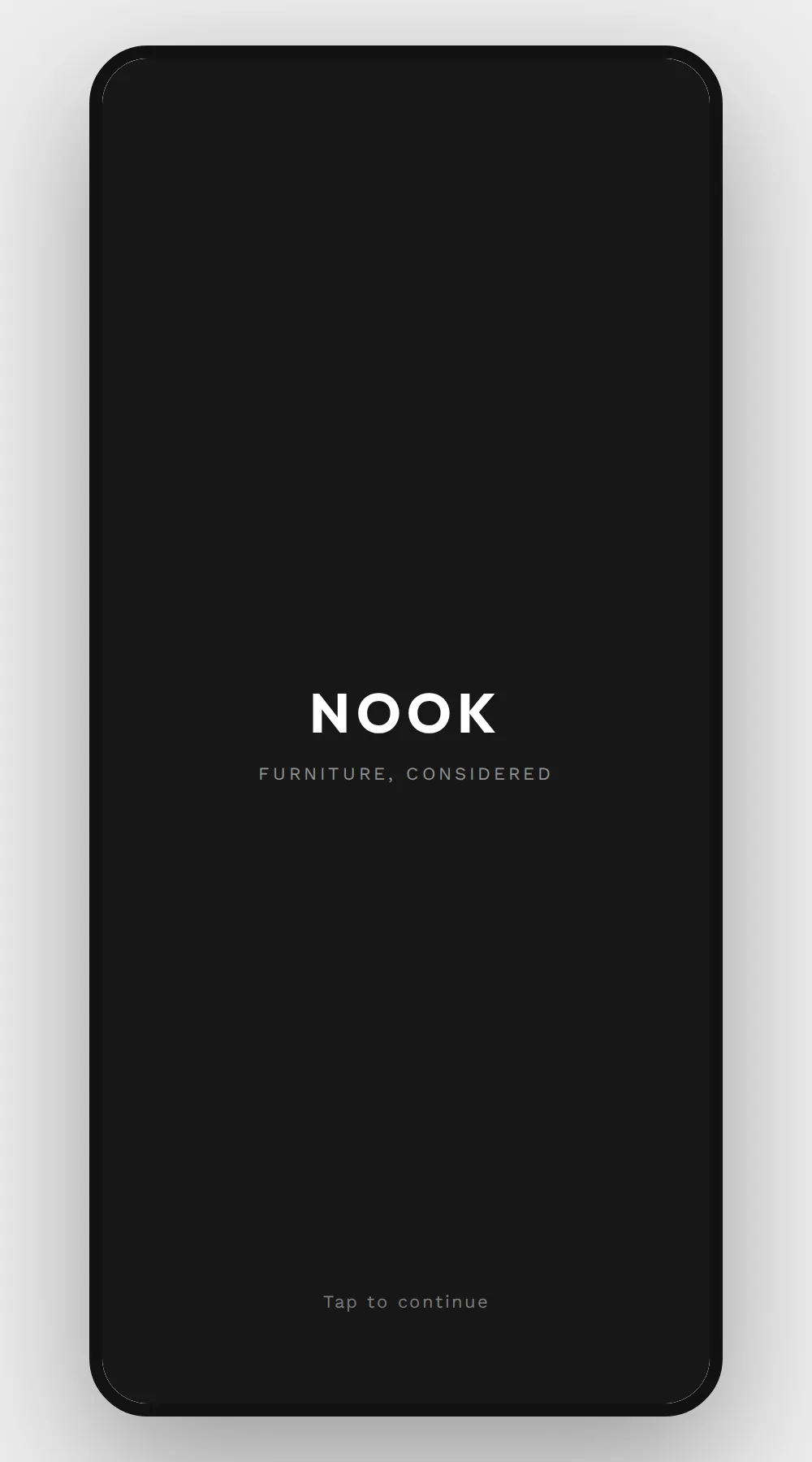
Splash. The logo sets the tone before the interface loads.
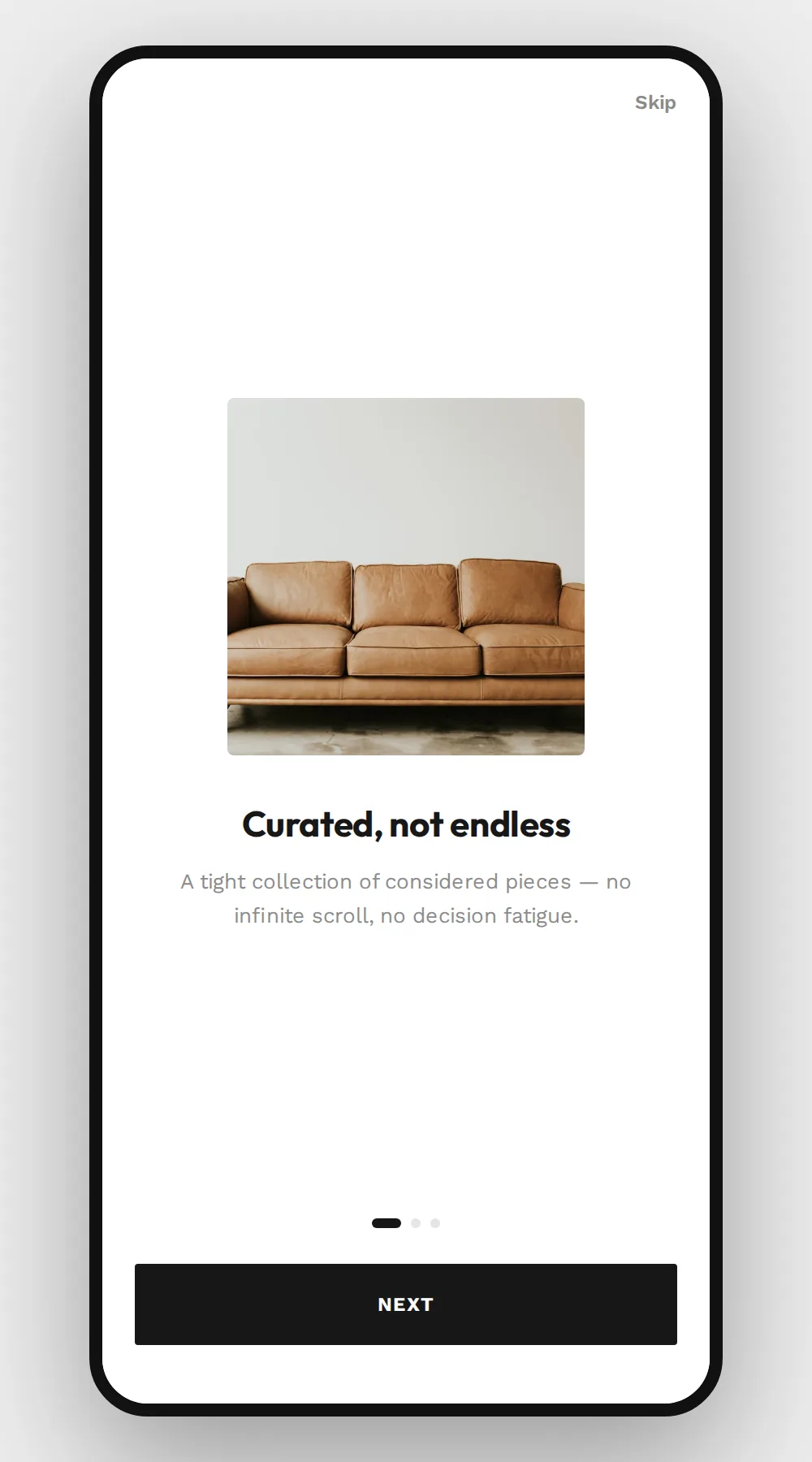
Onboarding. Three slides explain the app, and Skip is always visible.
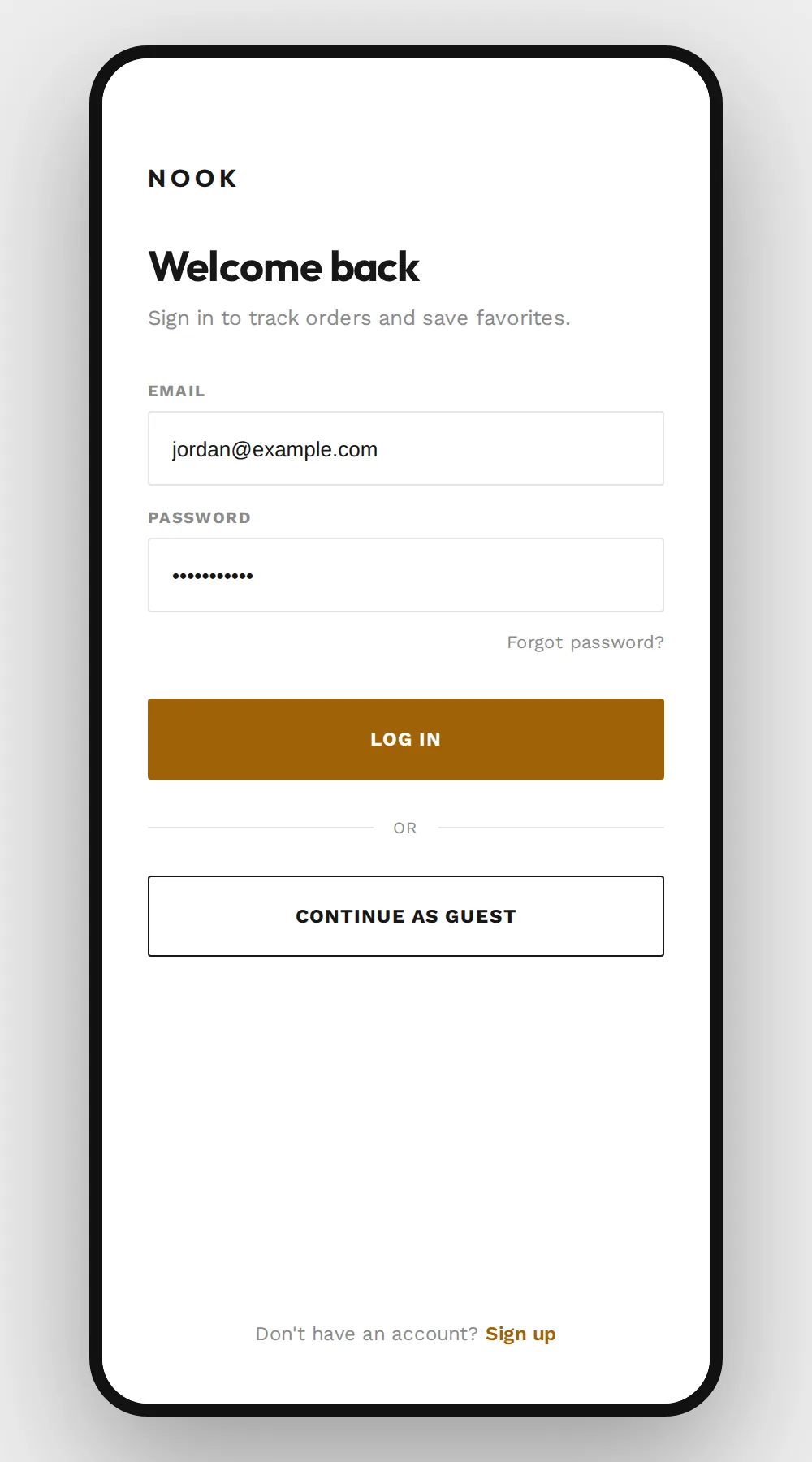
Sign in. Two fields and a guest option. Nobody needs an account to shop.
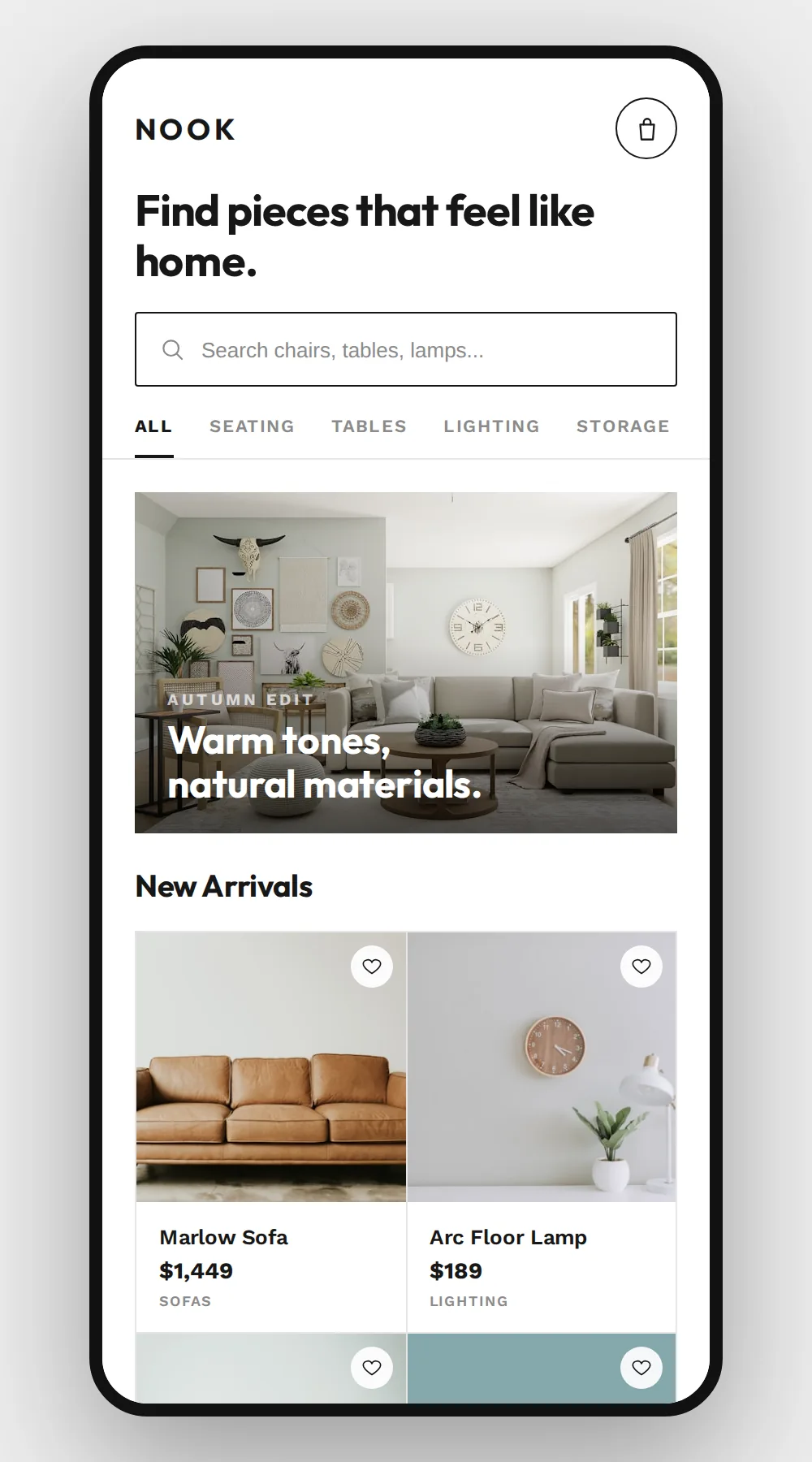
Home. Search is one tap away, and the category tabs sit above the fold.
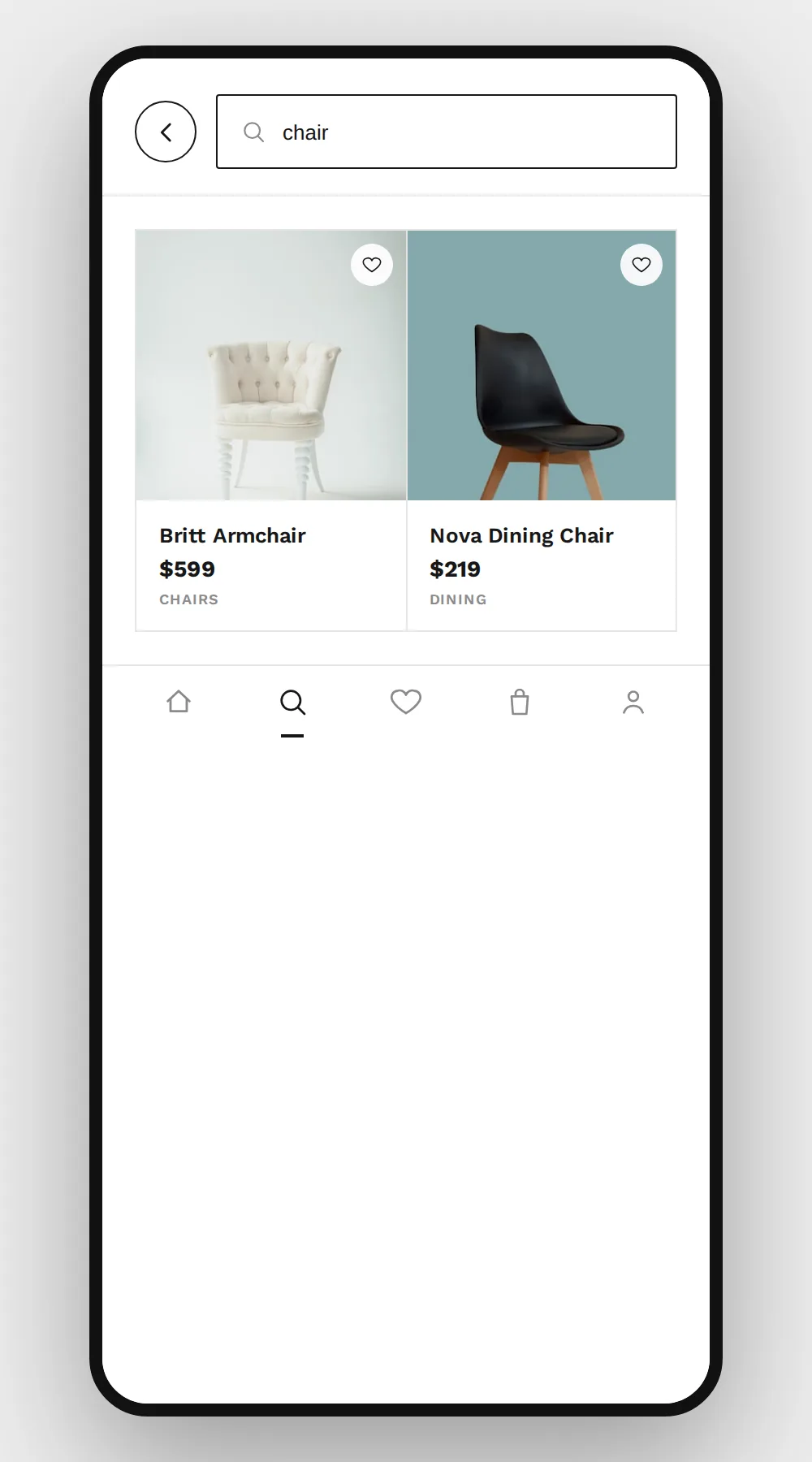
Search. Results filter by name and category as you type.
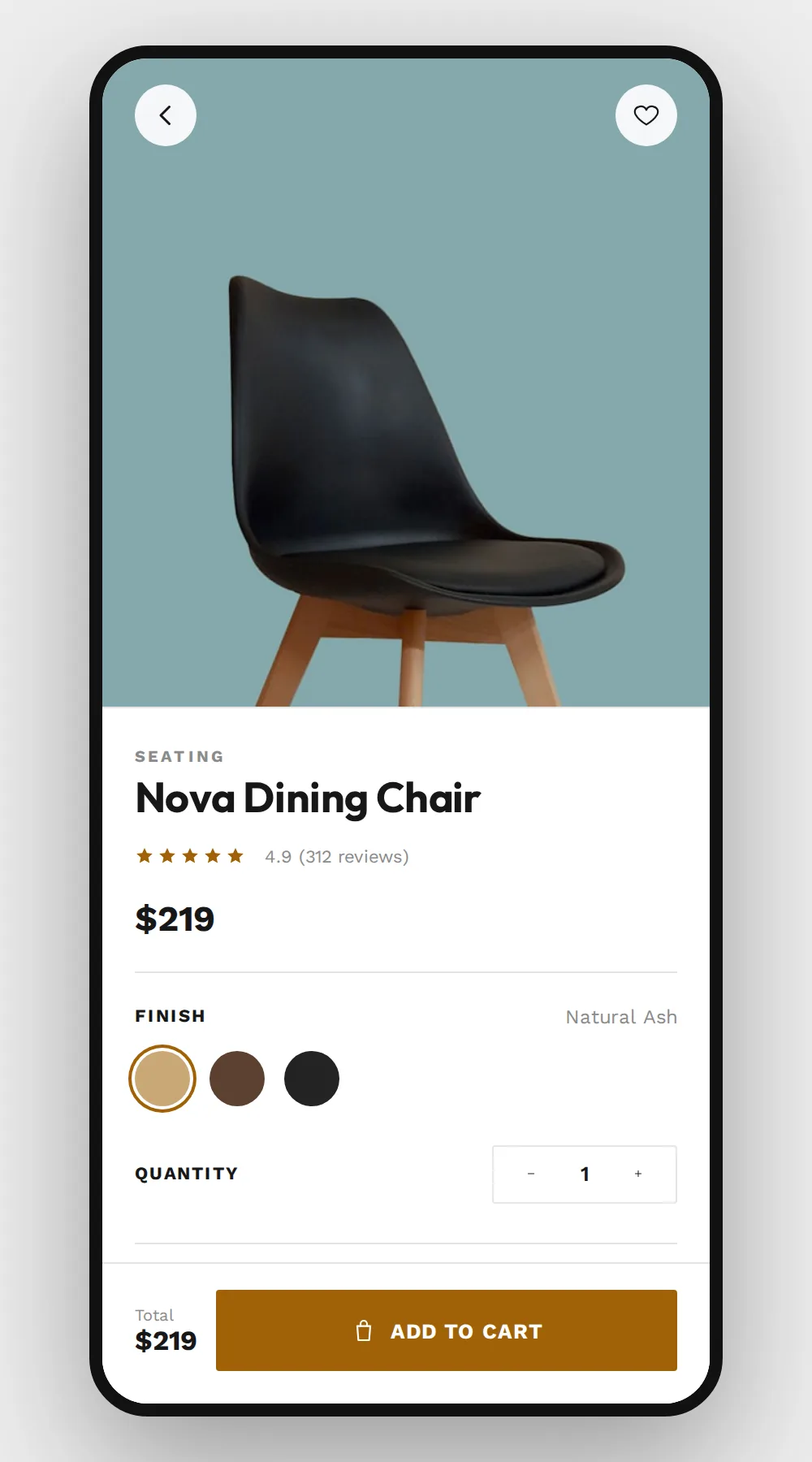
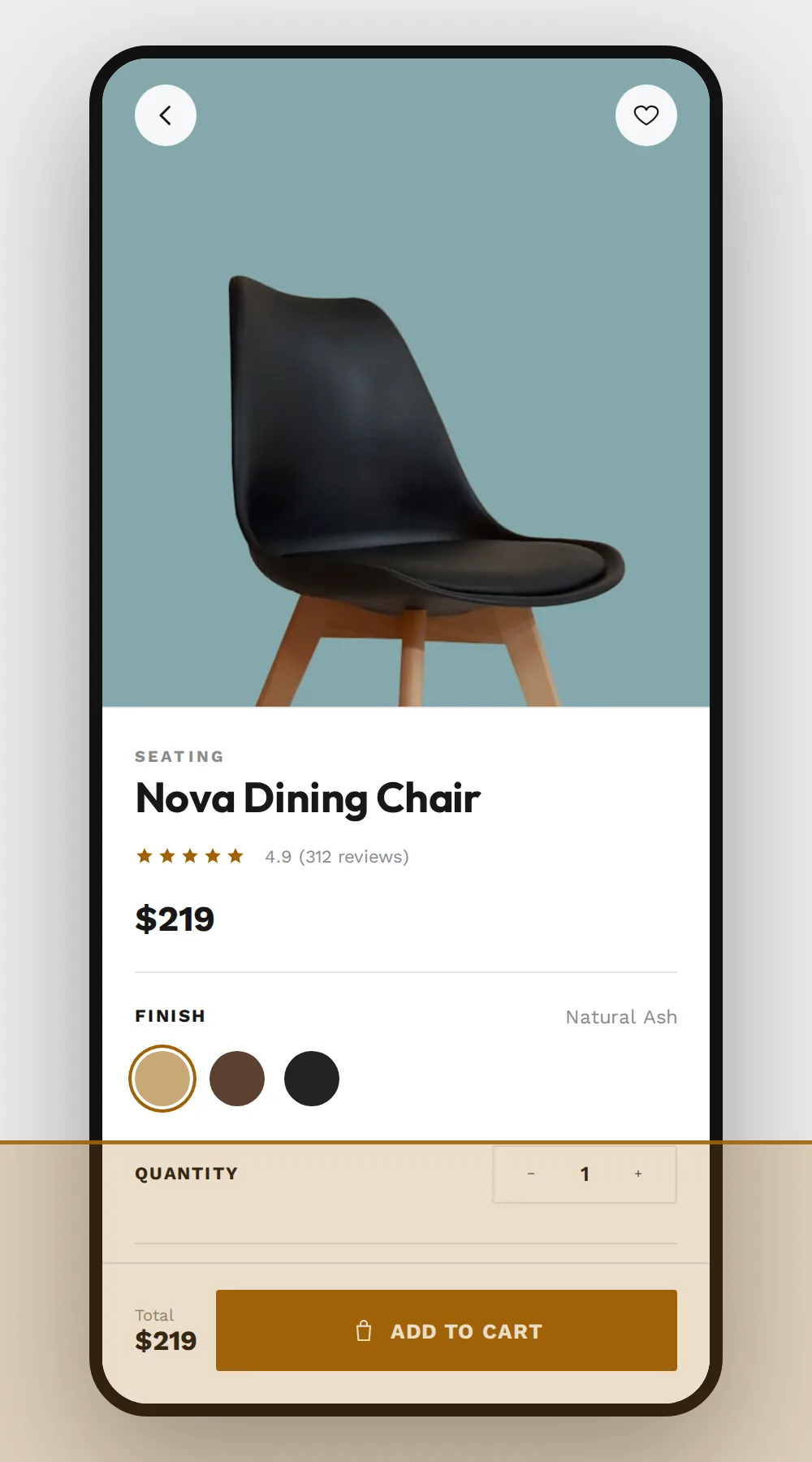
Product detail. The button sits at the bottom, within thumb reach. Finishes are swatches you tap to preview.
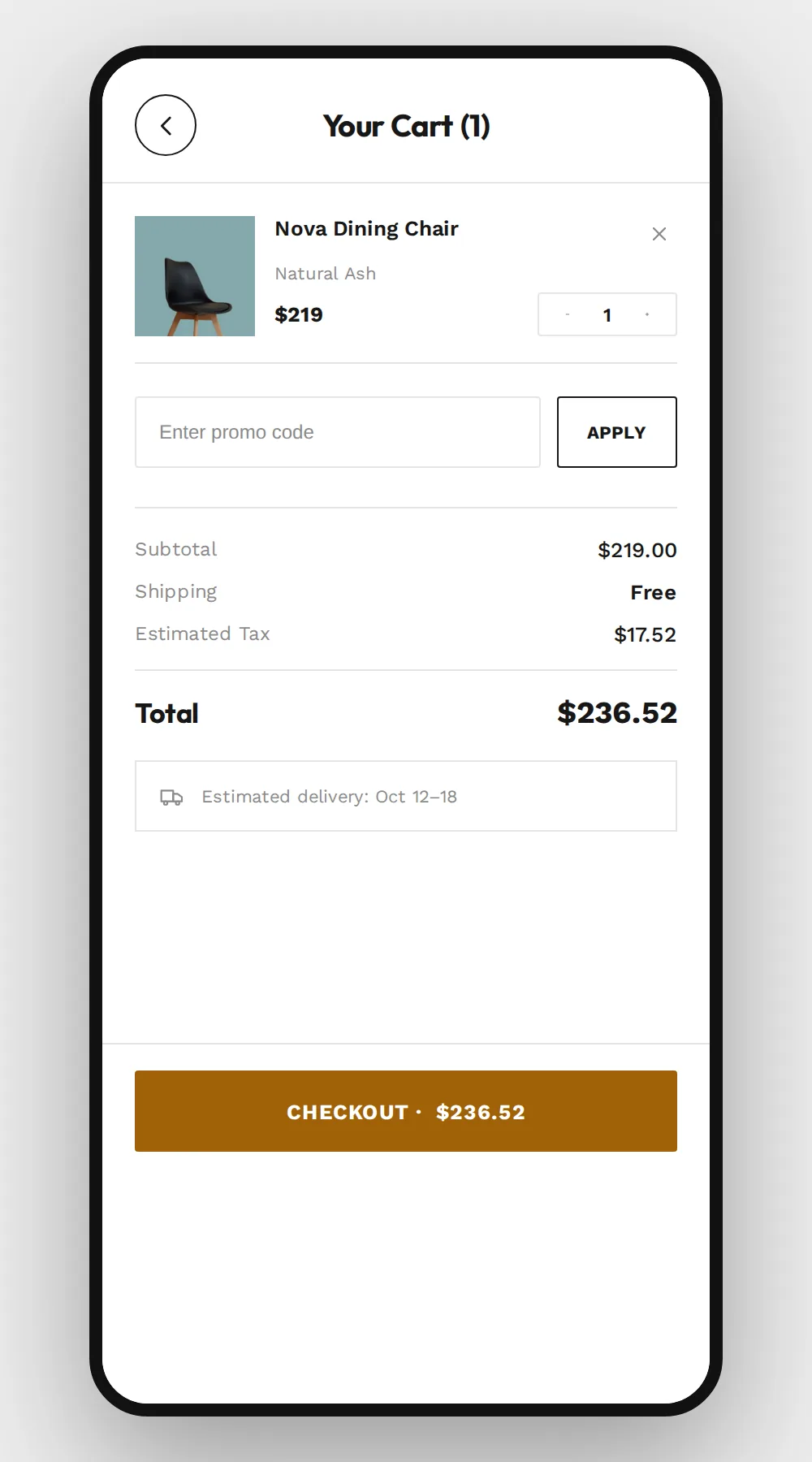
Cart. Tax and shipping show before checkout, so the last screen holds no surprise total.
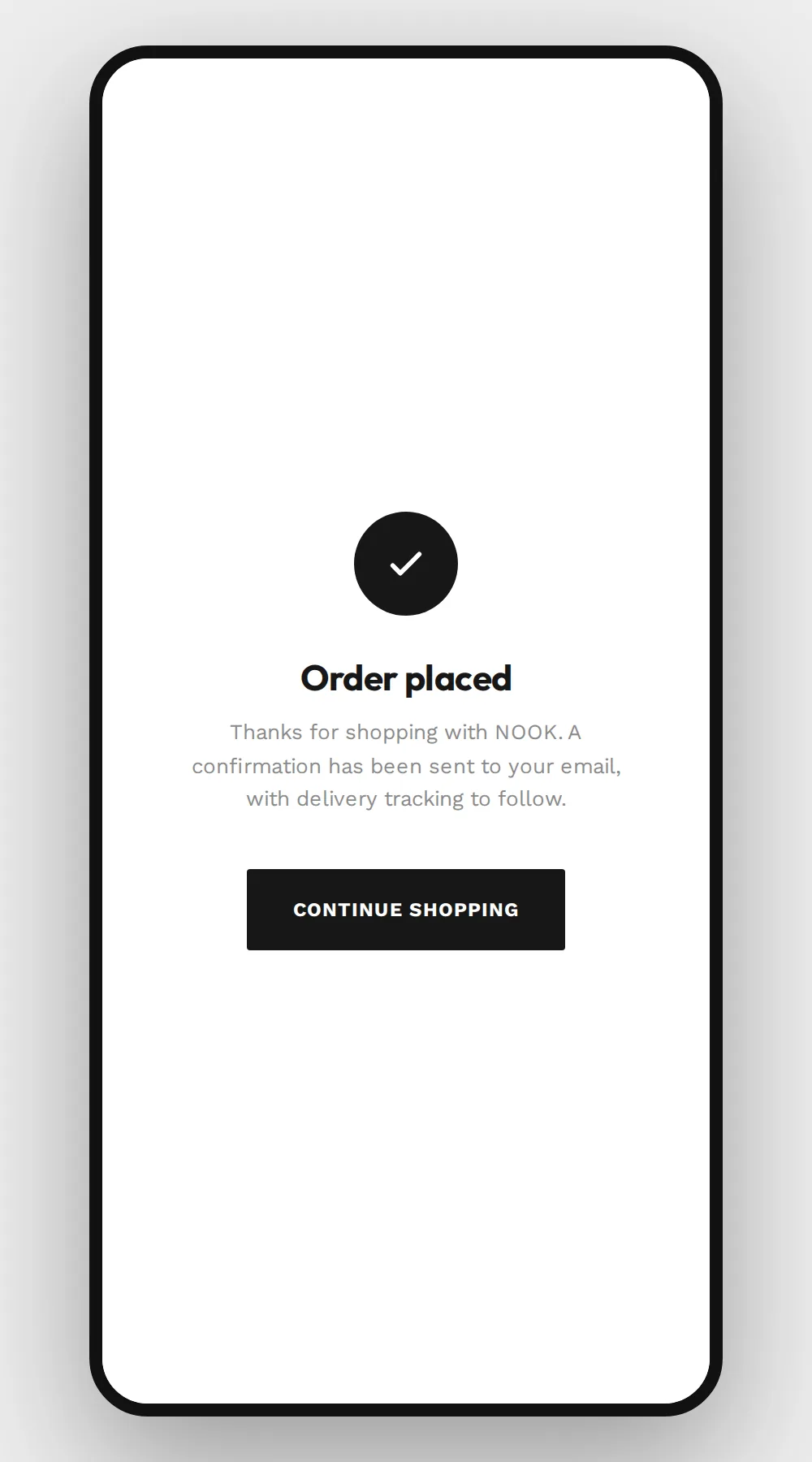
Order confirmation. A clear success message and a link back to the catalog.
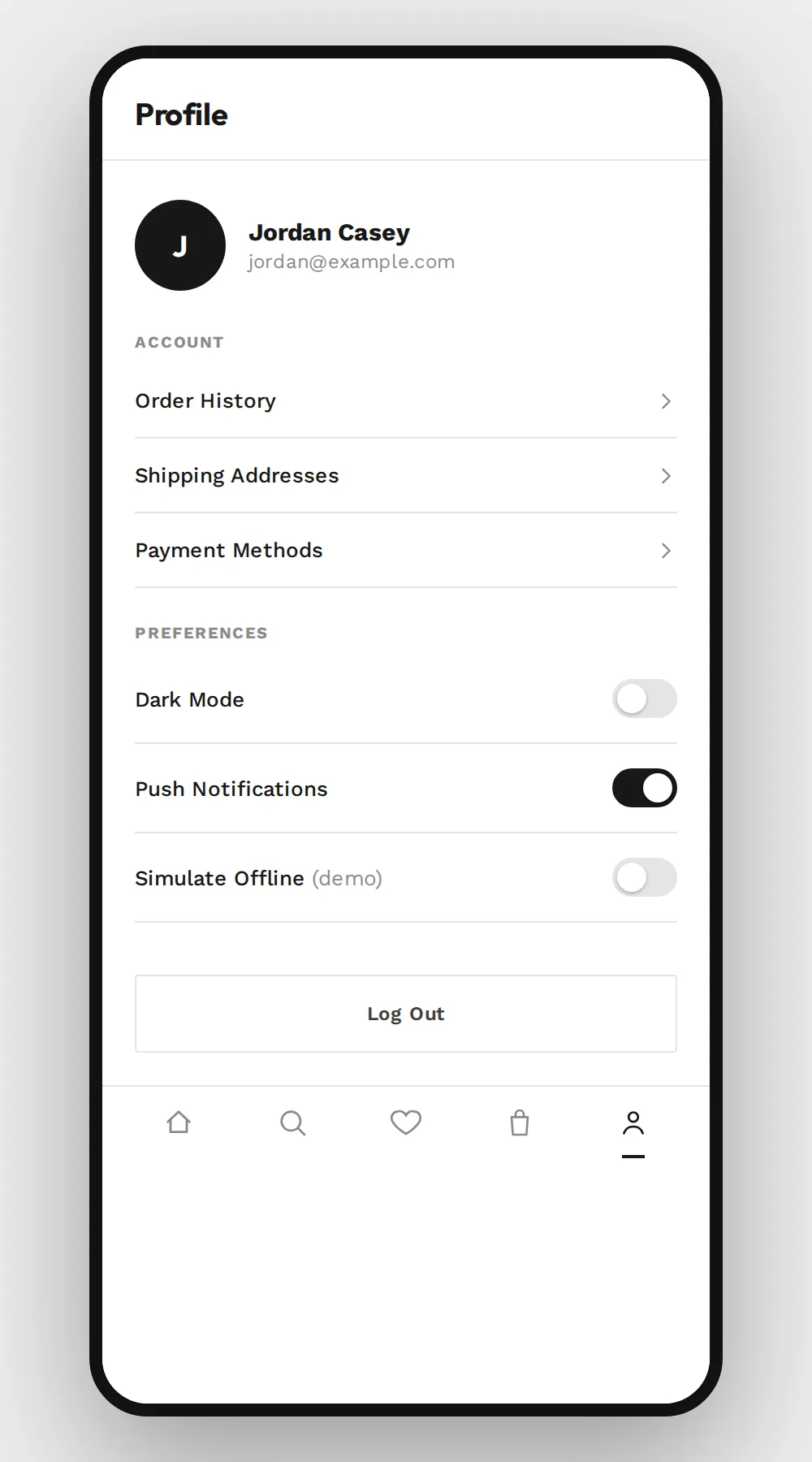
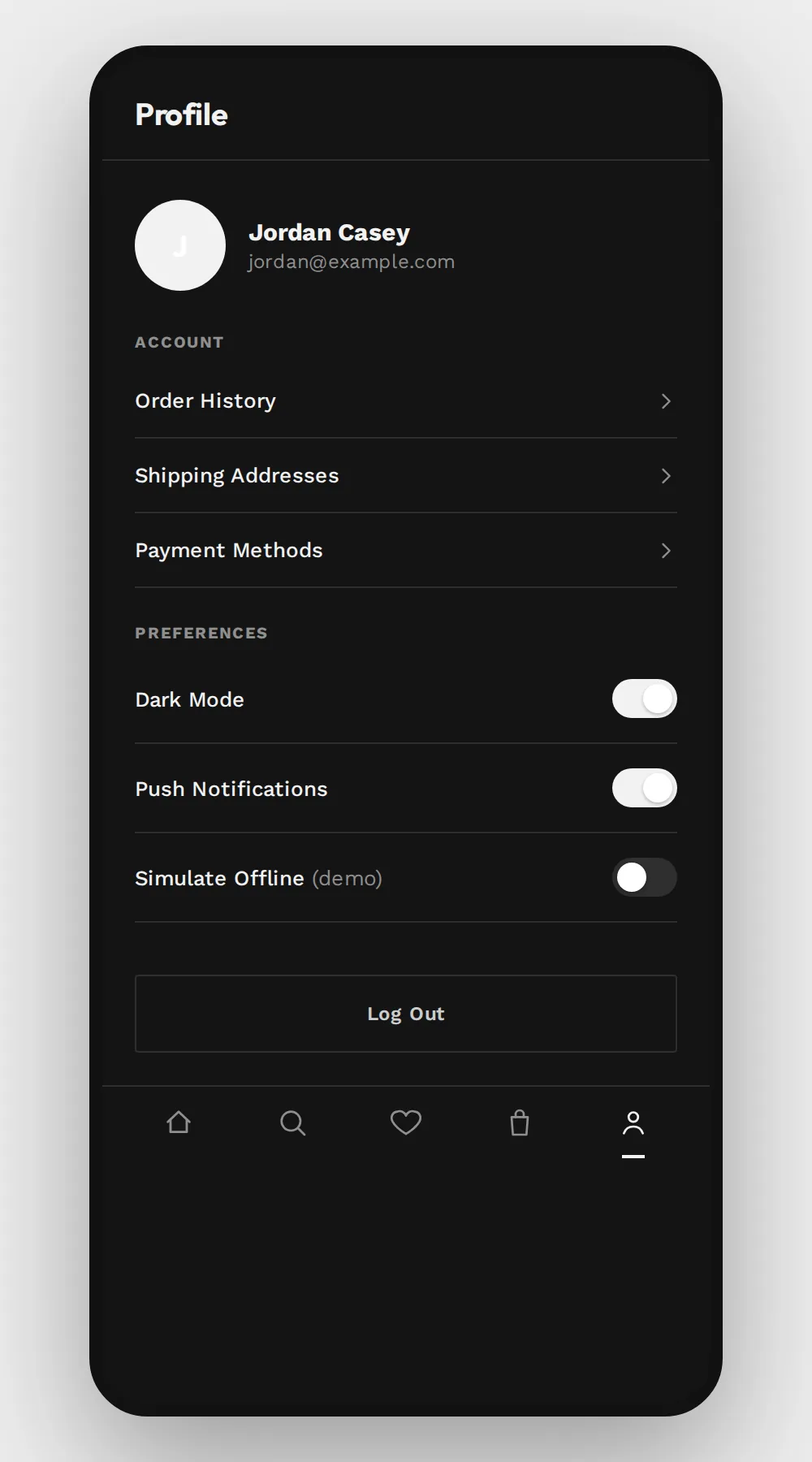
Profile. Account, preferences, and settings in one place.
Interactive prototype

05 / 10

Every screen below is the working app shell, not linked images. Tap through it as a shopper would: browse, open a product, change its finish, add it to the cart, and check out.

Open Full-Screen  →

Try tapping Nova Dining Chair in the grid. Each product opens its own detail page and adds its own line to the cart.

Mobile details

06 / 10
Add to Cart, Checkout, and the tab bar sit in the bottom third of the screen, where a thumb reaches them witho.
Add to Cart, Checkout, and the tab bar sit in the bottom third of the screen, where a thumb reaches them without shifting grip.
  • Every tappable control (nav icons, quantity stepper, swatches) is at least 44×44px, the platform minimum, even when the icon looks smaller.
  • The Checkout and Add to Cart buttons stay in a sticky footer, so nobody scrolls to reach them.
  • The tab bar has five destinations (Home, Search, Saved, Cart, Profile), the most it can hold before it needs a More menu.
  • Dark mode swaps the design tokens instead of using a separate design. See the design system section.
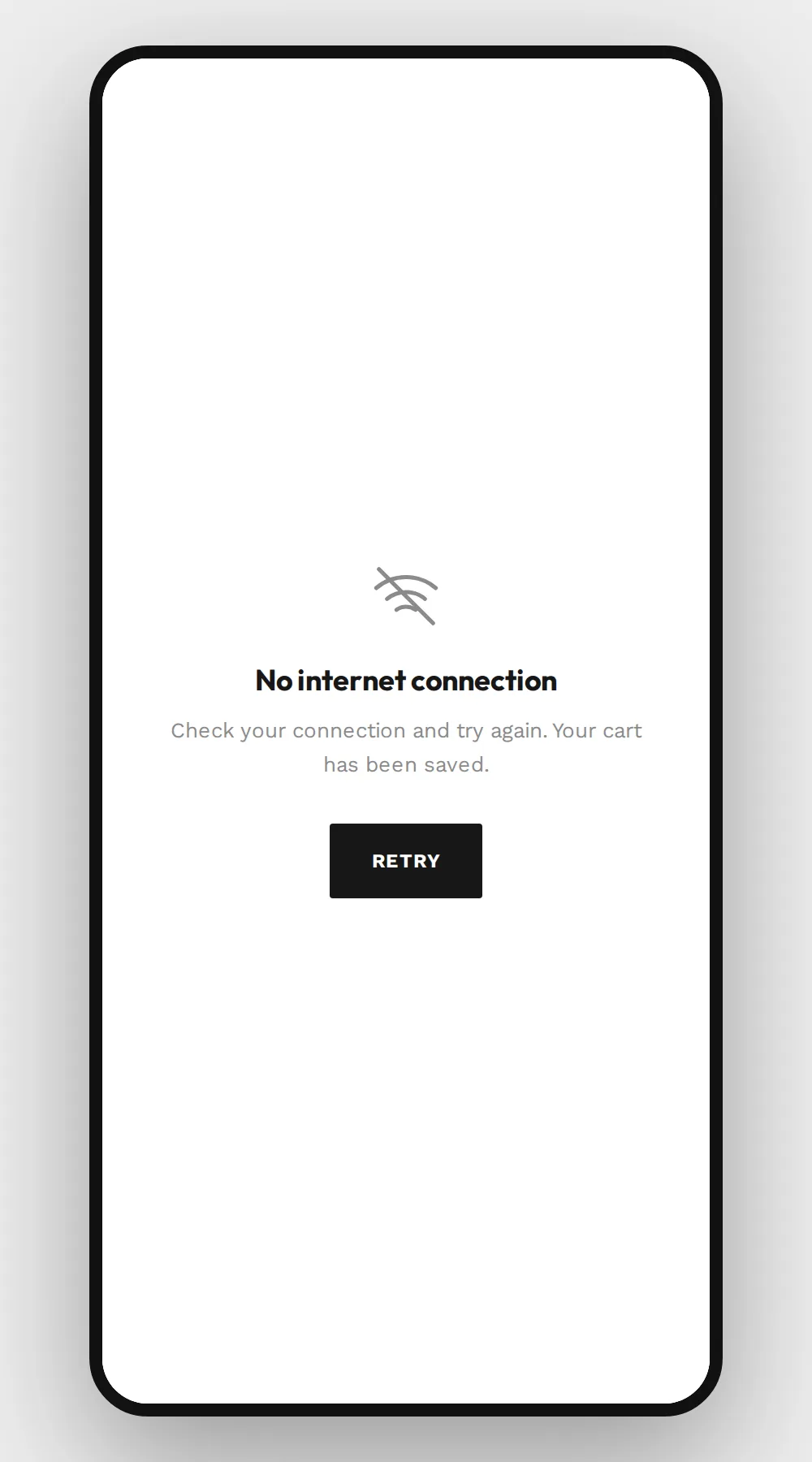
  • When the connection drops, the app shows a no-connection screen instead of a blank or broken one (see edge cases).
  • Ink-on-white and white-on-gold pairs pass WCAG AA contrast. Each tab bar icon has one clear meaning and does not rely on color alone.

Edge cases

07 / 10

Design pitches often skip these states: an empty cart, a slow connection, a search with no matches. Each one has its own screen here.

Loading. A skeleton holds the layout while the detail screen loads, so there is no blank white flash.
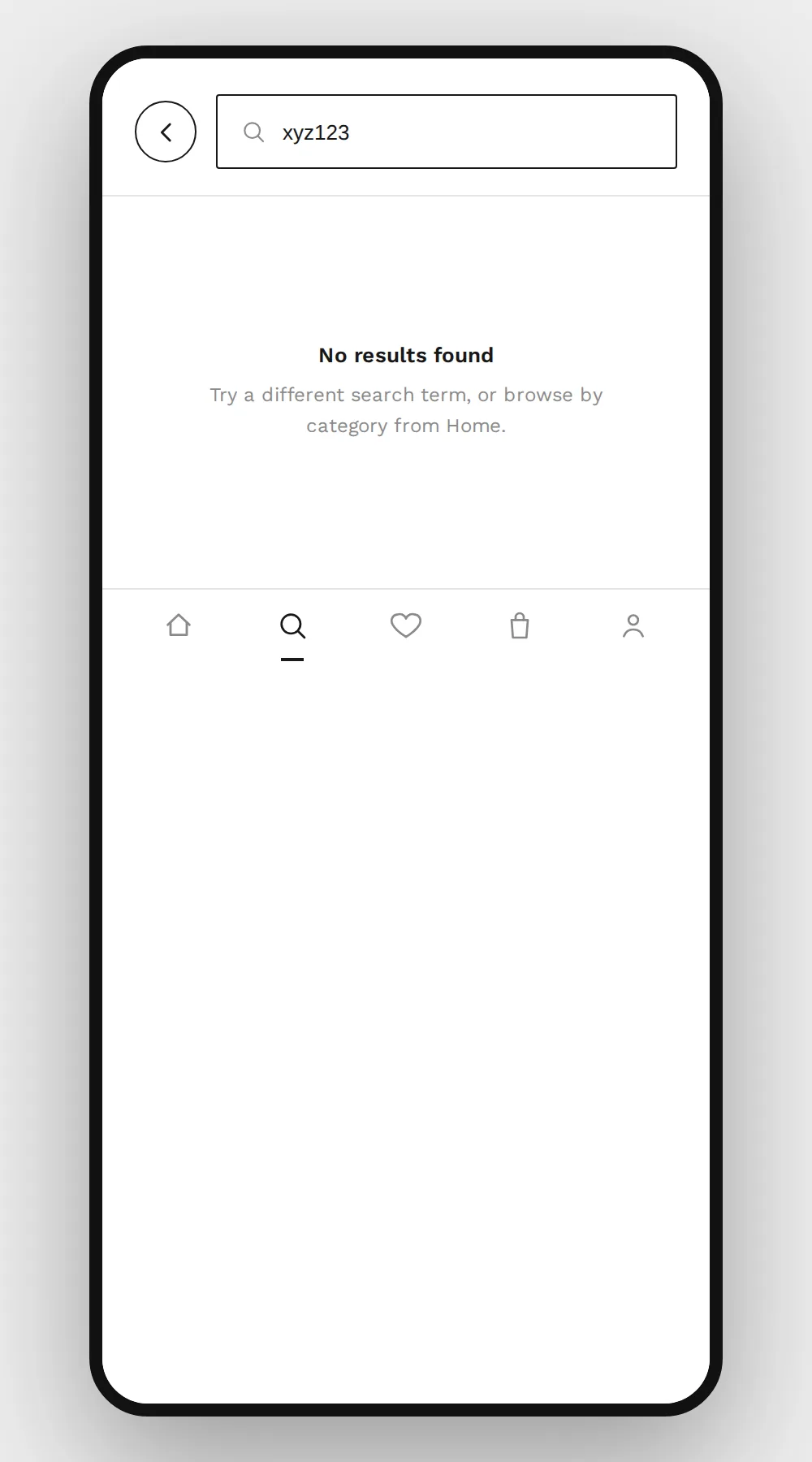
Empty search. A clear no results message with a next step, instead of a blank grid.
Empty search. A clear "no results" message with a next step, instead of a blank grid.
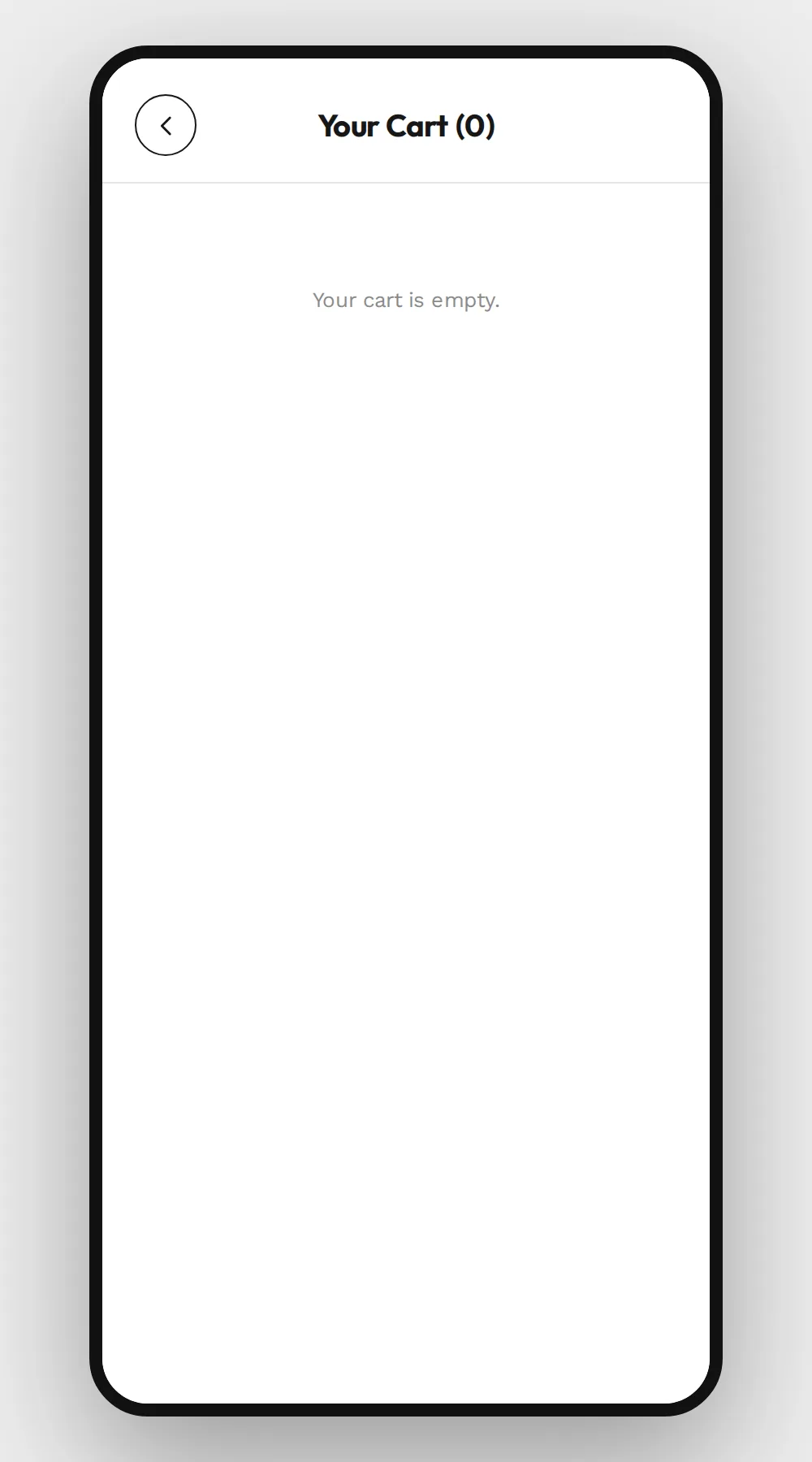
Empty cart. A short message says the cart is empty, instead of showing a blank screen.
No connection. Explains what happened, tells the shopper their cart is safe, and offers a Retry button.
Dark mode. The tokens switch to dark values, so it needed no second design.

Design system

08 / 10

A small set of design tokens that every new screen reuses.

Color
Ink #171717
White #FFFFFF
Surface #FAFAFA
Border #E5E5E5
Muted #8A8A8A
Accent #A16207
The one accent color is used only for prices and main buttons, so it always means "tap here" or "this costs money." Everything else is black, white, and gray, which lets the product photos stand out.
Typography
Outfit 700 · Headings
Find pieces that feel like home
Outfit 600 · Subheads
Nova Dining Chair
Work Sans 600 · UI Labels
Add to Cart
Work Sans 400 · Body
A sculptural dining chair in solid ash with a woven cord seat.
Work Sans 700 · Overline
Seating
Buttons
Primary · Add to Cart
Secondary · Continue as Guest
Tertiary · Log Out
Components
−
1
+
Dark Mode toggle
3-Seat
Sectional
Icons
home
search
save
cart
profile
back
Corners are square or nearly so (0 to 2px radius) for a Swiss-grid look. Screen padding is 20px, and the spacing steps are 4, 8, 12, 16, 24, and 32px.

Expected impact

09 / 10

NOOK is a new concept, so there are no before-and-after numbers. Each choice below follows a common ecommerce checkout pattern.

Guest checkout
Shoppers can buy without making an account, which removes a common reason for abandoned carts.
Costs shown early
Tax and shipping appear in the cart, before checkout, so the final total holds no surprises.
Search-first path
A shopper who already knows what they want reaches checkout in 4 taps, without browsing the full catalog.

Once the app is live, the plan is to measure each of these with real checkout data (see next steps).